
eMail Settings
PaperSave allows you to define preferences related to Workflow email notifications (that are sent to Workflow step owner to review the assigned Workflow items) or email alerts about any unexpected errors in PaperSave (For Example, "Auto Entry Execution error", "Workflow Execution error", etc.) from the eMail Settings.
eMail Settings option enables you to perform the following operations:
- Enable/Disable Diagnostic email alerts.
- Define email addresses to receive diagnostic email alerts.
- Send an email alert to the specified email addresses (using the Test option).
- Choose the Notification style for email alerts (that is PaperSave 6x or 7x format).
Follow the below steps to configure PaperSave eMail Settings:
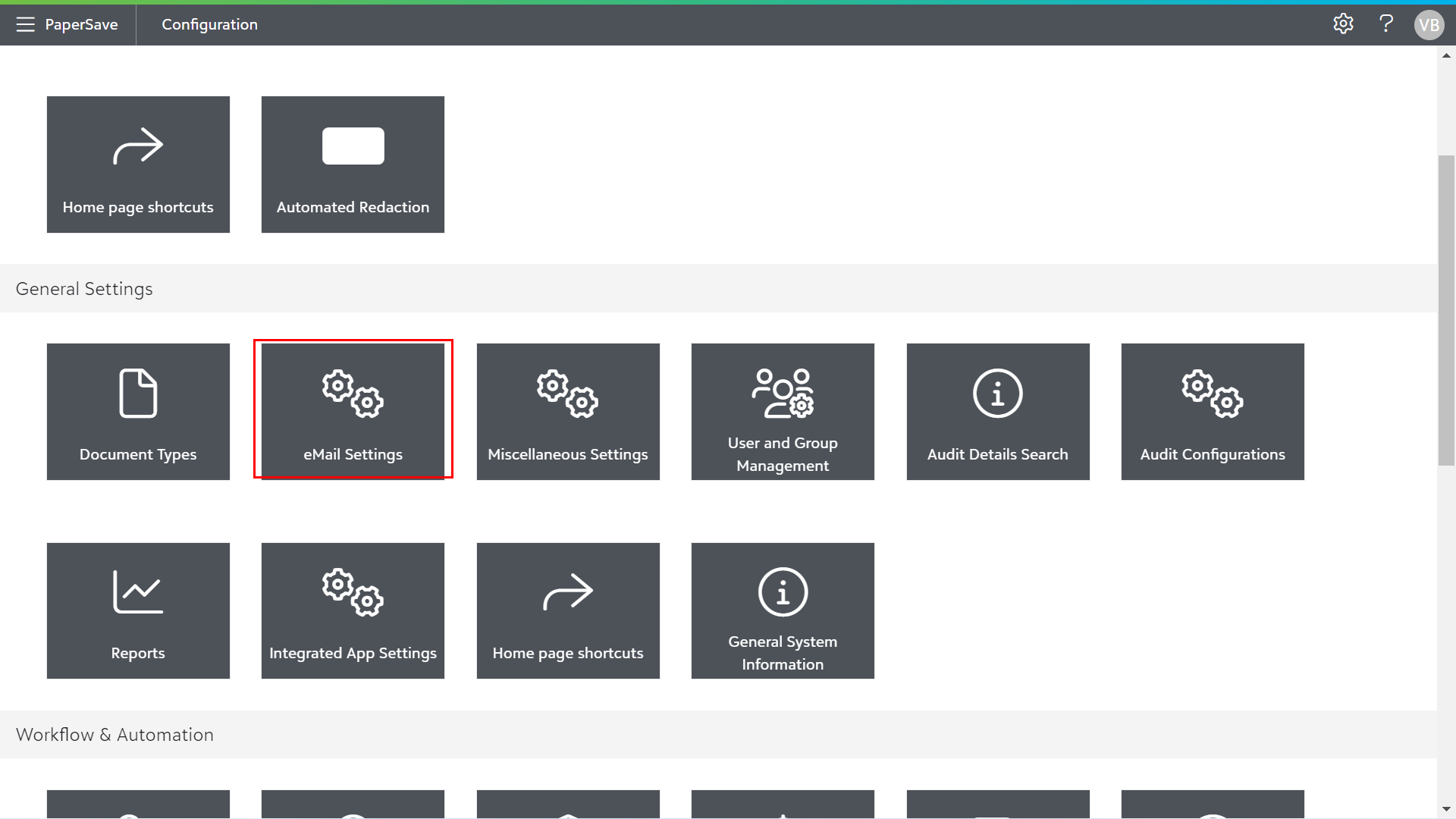
1) Click on eMail Settings in General Settings section of the Configuration Area.
2) Now, eMail Settings dialog box pops up as shown in the below screen.
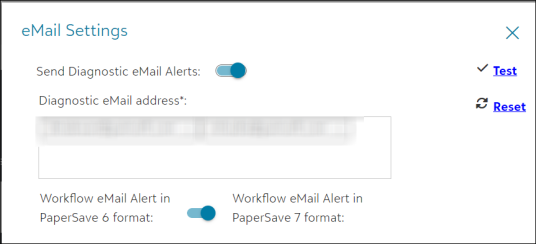
3) The following are various options in the eMail Settings:
- Send Diagnostic eMail Alerts: Turn on this option to enable the diagnostic email settings options.
- Diagnostic eMail address: Enter the email addresses of the user in the given box and press Enter from the keyboard to insert the email address. Similarly, you can add multiple email addresses in the search box.
- Test: Click on Test to send the diagnostic alert notifications to the specified email addresses. You will see the following prompt once the eMail alerts are sent.

- Reset: Click on the Reset option to restore the last saved diagnostic email addresses. This option can be used to discard the recently added email addresses before exiting the dialog.
- Workflow eMail alert in PaperSave 6 or 7 format: Choose the desired format to receive all the email notifications.